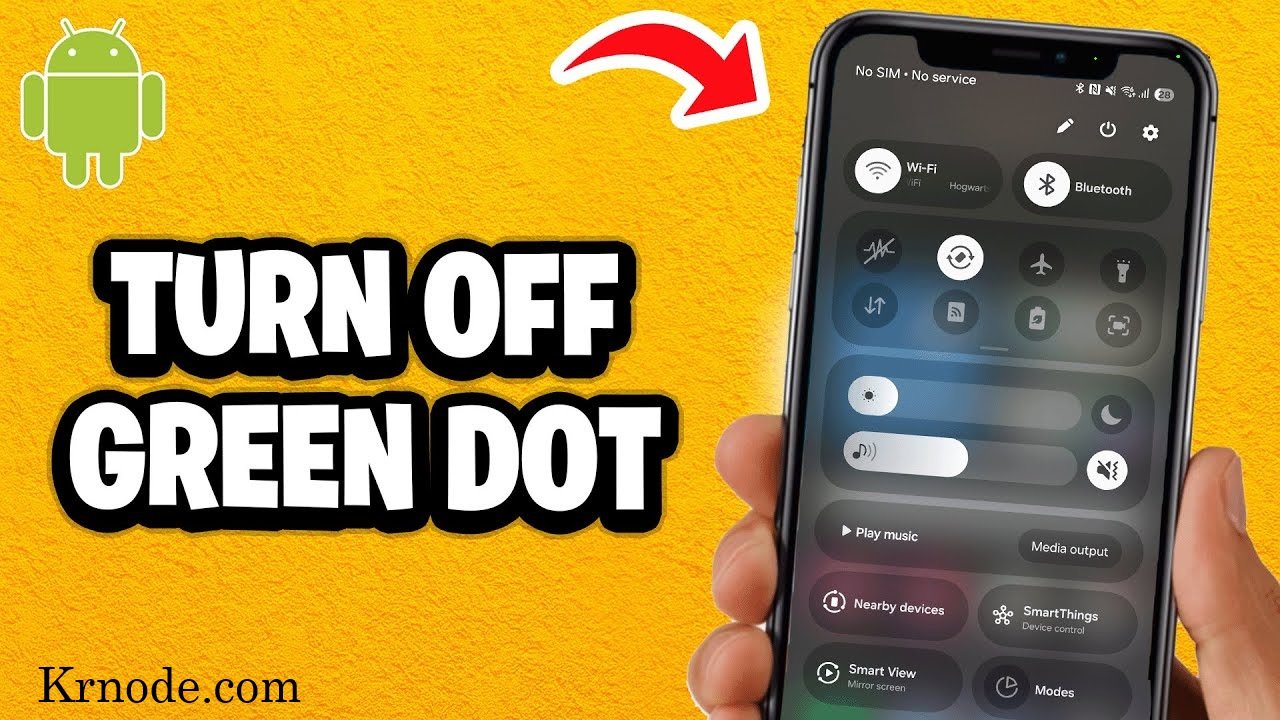
Have you noticed a small green dot at the top of your Android or iPhone screen and wondered how to turn it off? This tiny indicator can appear when an app is using your phone’s camera or microphone.
The green dot is not usually a problem or a sign that your phone is damaged. It is a privacy feature that lets you know when an app is accessing your camera or microphone. In this guide, you’ll learn what the green dot means and how to stop it from appearing unnecessarily on Android and iPhone.
What Is the Green Dot on Your Phone?
The green dot is a built-in privacy indicator found on modern Android phones and iPhones. It appears when an app accesses your camera or, depending on the device, the camera and microphone.
On Android 12 and newer, the green indicator can appear when an app is using the camera or microphone. You can check the privacy controls to find out which app is accessing these features.
On iPhone, Apple uses the green dot to show that an app is using the camera. If only the microphone is being used, an orange dot appears instead.
Why Does the Green Dot Appear?
The green dot can appear when:
- You open the phone’s camera
- You make a video call
- WhatsApp or another messaging app uses the camera
- Instagram, Snapchat, or another social app accesses the camera
- A voice or video feature uses the microphone
- An app running in the background accesses a privacy-sensitive feature
In most cases, the indicator appears for a normal reason. However, if you notice it when you are not using your camera or microphone, it is worth checking your app permissions.
Can You Turn Off the Green Dot?
The answer depends on what you mean by “turn off.”
You generally cannot permanently disable the privacy indicator itself through the normal Android or iPhone settings. Instead, you can stop individual apps from accessing your camera or microphone.
This means that the best way to prevent unnecessary green dot appearances is to review your privacy permissions and remove access from apps that do not need it.
How to Turn Off Green Dot on Android
Method 1: Close the App Using the Camera
The easiest way to stop the green dot is to close the app that is currently accessing your camera or microphone.
- Open the Recent Apps screen.
- Find the app you were using.
- Swipe the app away to close it.
- Return to your home screen.
- Check if the green dot has disappeared.
If the app was responsible for the indicator, closing it should stop the camera or microphone activity.
Method 2: Disable Camera or Microphone Permission
If the green dot keeps appearing because of a particular app, you can remove its permission.
- Open Settings.
- Tap Apps.
- Select the app you want to check.
- Tap Permissions.
- Select Camera or Microphone.
- Choose Don’t allow.
After removing the permission, that app will no longer be able to use the blocked feature.
Note: Some apps may lose important functions after you remove camera or microphone permission. For example, a video calling app may not work correctly without camera access.
Method 3: Check Which App Is Using the Camera
If you see the green dot but don’t know which app caused it, Android provides privacy information that can help.
- Wait until the green dot appears.
- Swipe down from the top of the screen.
- Tap the green indicator or privacy notification.
- Check which app is using the camera or microphone.
- Open that app’s permissions if you want to restrict access.
This is useful when the green dot appears unexpectedly.
Can You Completely Remove the Green Dot on Android?
On standard Android devices, there is normally no regular setting to permanently remove the green privacy indicator.
Instead, you can control camera and microphone access for individual apps. Some Android phones also provide quick controls that allow you to disable camera or microphone access at the device level.
How to Turn Off Green Dot on iPhone
Method 1: Close the App
If an app is currently using your camera, closing it can stop the green indicator.
- Open the App Switcher.
- Find the app that was using the camera.
- Swipe up on the app to close it.
- Return to the Home Screen.
- Check whether the green dot is gone.
Method 2: Turn Off Camera Access
You can prevent specific apps from accessing your iPhone camera.
- Open Settings.
- Tap Privacy & Security.
- Select Camera.
- Review the apps that have camera access.
- Turn off access for apps that do not need it.
This is one of the best ways to prevent apps from using your camera when you do not want them to.
Method 3: Check Microphone Access
If you also notice an orange dot, an app may be using your microphone.
- Open Settings.
- Tap Privacy & Security.
- Tap Microphone.
- Review the list of apps.
- Disable microphone access for apps that do not need it.
On iPhone, the green dot is related to camera use, while the orange dot indicates microphone-only activity.
Method 4: Check Control Center
If you are unsure which app recently used your camera or microphone, Control Center can provide useful information.
- Swipe down from the top-right corner of your iPhone.
- Open Control Center.
- Check the information shown near the top.
- Look for the app that recently accessed the camera or microphone.
- Close the app or review its permissions if necessary.
Can You Completely Turn Off the Green Dot on iPhone?
No, iPhone does not provide a normal option to permanently disable the green privacy indicator.
The feature is designed to alert you when an app uses your camera. Instead of removing the indicator, you can control which apps are allowed to access your camera.
Green Dot on Android vs iPhone
| Feature | Android | iPhone |
| Green indicator | Camera or microphone activity | Camera activity |
| Microphone indicator | Green on supported versions | Orange |
| Check app access | Privacy controls | Control Center and Privacy & Security |
| Manage permissions | App permissions | Camera and Microphone settings |
| Permanently disable indicator | Not normally available | Not normally available |
Tips to Stop the Green Dot From Appearing Unnecessarily
Review app permissions. Check your installed apps regularly and remove camera or microphone access when it is not needed.
Close apps you are finished using. If an app continues using a privacy-sensitive feature, closing it may stop the indicator.
Think before allowing permissions. When a new app asks for camera or microphone access, make sure the permission is actually necessary.
Keep your phone updated. Install system and app updates to maintain security and improve compatibility.
Check unexpected activity. If the green dot appears while you are not using the camera, identify the app responsible and review its permissions.
Restart your phone when needed. If the indicator remains after you have closed the related apps, restarting your device can sometimes clear temporary background activity.
FAQs
Q: Can I completely turn off the green dot on Android?
No, the standard Android settings generally do not provide an option to permanently remove the privacy indicator. You can control camera and microphone permissions instead.
Q: Can I turn off the green dot on iPhone?
No, Apple does not provide a normal setting for permanently disabling the green camera indicator. You can manage which apps have camera access.
Q: Does the green dot mean someone is spying on me?
Not necessarily. The indicator usually means an app is accessing your camera or microphone. If it appears unexpectedly, check which app is responsible and review its permissions.
Q: Why does the green dot appear when I am not using my camera?
An app may be accessing the camera or microphone in the background. Check your privacy controls and permissions to identify the app.
Q: What is the orange dot on iPhone?
The orange dot means an app is using your microphone without using the camera. It is another privacy indicator built into iOS.
Conclusion
The green dot on Android and iPhone is designed to protect your privacy by showing when an app is accessing your camera or microphone. While you cannot normally remove the indicator completely, you can control which apps are allowed to use these features.
If the green dot appears when you do not expect it, check your privacy settings, identify the app responsible, and remove its camera or microphone permission if necessary.
Keeping your app permissions under control is one of the simplest ways to improve your smartphone privacy in 2026.